How to Optimise Your Website Speed: A Practical Guide for 2026
How to measure and improve website speed — Core Web Vitals, image optimisation, Webflow performance settings, and more.
Table of contents
A slow website does not just feel frustrating — it directly costs you traffic, rankings, and revenue. Google uses Core Web Vitals as a confirmed ranking signal, and in Singapore's mobile-first, high-competition market, speed is often the difference between a visitor who converts and one who bounces. This guide covers everything you need to measure and improve your website's performance: the metrics that matter, the most common bottlenecks, Webflow-specific optimisation settings, and how to keep performance strong over time.
Why Website Speed Matters
Users do not read websites — they scan, scroll, and decide. In Singapore, where users are highly connected, mobile-first, and navigating competitive markets across finance, e-commerce, education, and professional services, a slow website does not just feel bad — it loses trust instantly.
If your website takes more than three seconds to load on mobile, a significant proportion of visitors will leave before any content appears. They will find an alternative, compare it, and rarely return. That is not a technical statistic — it is lost pipeline.
Google's research has confirmed page speed as a ranking signal since 2010, and the importance of that signal has grown with each Core Web Vitals update. Speed is now simultaneously an SEO factor, a UX factor, and a conversion factor — one of the few technical optimisations where improving it benefits every measurable business outcome at once.
What Is Website Speed — And How Is It Measured?
Website speed refers to how quickly your website loads and becomes usable for visitors. It is often conflated with page speed, which measures how fast a single page loads. Both matter — but the distinction is important when diagnosing performance issues.
- Website speed: overall performance across multiple pages — how the site performs as a whole
- Page speed: performance of an individual page — the metric tools like PageSpeed Insights report on
For most businesses, the pages that matter most for speed are the ones that carry the most commercial weight: your homepage, service pages, landing pages, and any page that sits between a user and a conversion action.
Core Web Vitals: The Metrics Google Actually Uses
Google does not judge speed by feel. Since 2021, it has measured performance through Core Web Vitals — a specific set of field metrics that capture real user experience. Understanding these is essential because they are the direct input to Google's ranking algorithm for page experience. You can read the full technical specification at web.dev/vitals.
Webflow note: Webflow's hosting infrastructure scores well on TTFB and LCP for most standard sites because of its global CDN. The most common issues on Webflow projects are CLS (images without defined dimensions) and INP (heavy custom JavaScript or third-party embeds).
Speed is also the connective tissue between responsive design and rankings. Our piece on how responsive web design improves SEO covers how Google's mobile-first indexing makes performance on small screens the primary determinant of your search visibility — not desktop.
How to Check Your Website Speed
Before optimising anything, establish a baseline. Running your site through a performance tool before and after changes lets you verify what actually moved the needle — and by how much.
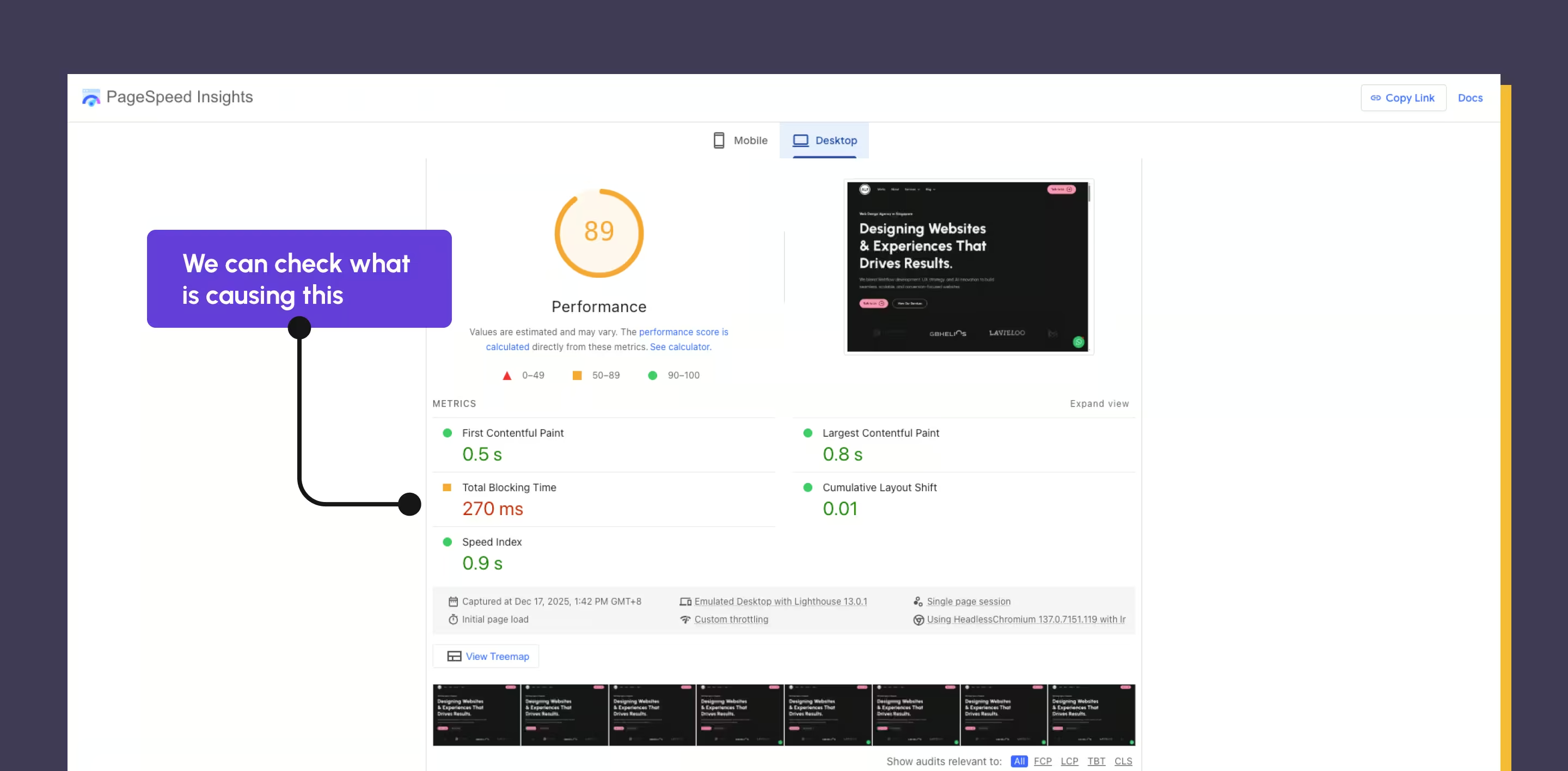
Recommended Tools
- Google PageSpeed Insights — Core Web Vitals for both desktop and mobile. Uses real-world field data (CrUX) alongside lab measurements. The most authoritative benchmark because it uses the same data Google uses for ranking.
- GTmetrix — detailed waterfall view showing which specific assets are slow, in what order they load, and where the biggest time savings are. Particularly useful for diagnosing image and JavaScript bottlenecks.
Key habit: Always check both desktop and mobile scores. Mobile scores are often significantly lower due to real-world network conditions and device constraints. Since Google indexes mobile-first, your mobile score is the one that matters most for rankings.
How to Optimise Your Website Speed
The following steps address the most common performance bottlenecks, roughly in order of impact. Not every site will need every fix — start with your PageSpeed Insights report and prioritise the Opportunities and Diagnostics sections.
1. Minify CSS and JavaScript

Minification removes whitespace, comments, and unnecessary characters from your code files without changing how they function. A minified CSS or JS file does the same job as an unminified one, but it is smaller and therefore faster to transfer and parse.
The practical effect is modest on its own — typically a few hundred milliseconds — but it stacks with other optimisations and has no downside.
- In Webflow: navigate to Site Settings → Hosting → Advanced Options and enable both Minify CSS and Minify JS. This is a one-click setting that applies globally. Enable it for every published Webflow site.
- For custom code: if you have added custom JavaScript via Webflow's custom code embed, minify it manually before pasting. Free online minifiers are widely available.
Impact on Core Web Vitals: Minification primarily improves FCP and INP by reducing the time the browser spends parsing and executing code before it can render content or respond to interactions.
2. Optimise Images — The Highest-Impact Fix
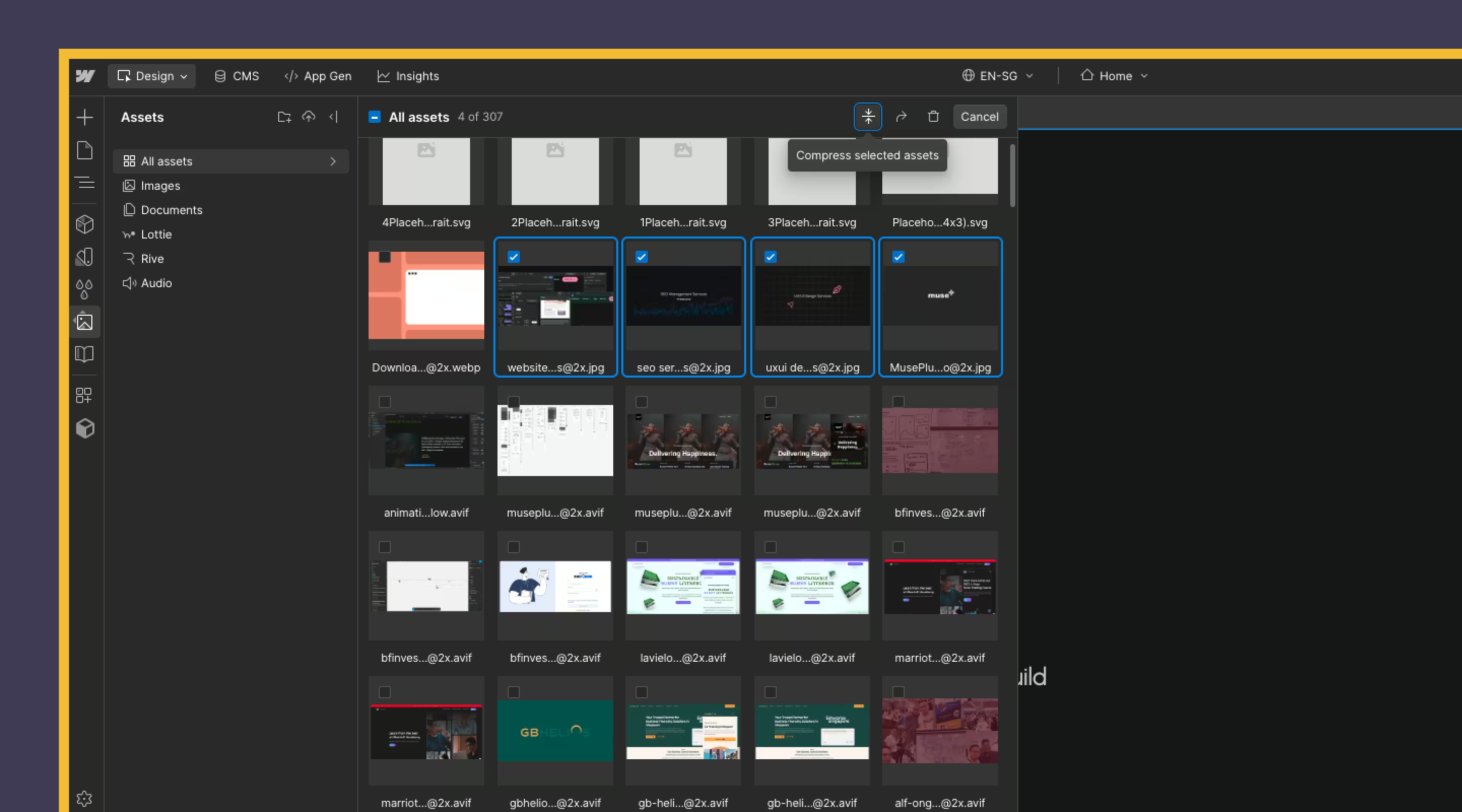
Images are consistently the most common and highest-impact performance bottleneck. An unoptimised hero image can add 1–3 seconds to load time on its own. Given that LCP is the metric most directly tied to user-perceived speed, image optimisation is where to start.
- Use WebP or AVIF format: both offer significantly better compression than JPEG or PNG at equivalent quality. WebP is supported by all modern browsers; AVIF offers even better compression but has slightly lower global support. Webflow supports both natively.
- Export at the correct display size: an image displayed at 800px wide does not need to be 3,000px wide. Export at 1x and 2x for retina, not at the raw camera or export resolution.
- Compress before upload: TinyPNG reduces file sizes by 50–80% with negligible quality loss. Run every image through it before uploading to Webflow.
- Define image dimensions in HTML: always set explicit width and height attributes on images. This prevents Cumulative Layout Shift (CLS) — one of the most commonly failed Core Web Vitals — by telling the browser how much space to reserve before the image loads.
- Avoid CSS resizing: uploading a large image and scaling it down with CSS wastes bandwidth and adds CLS risk. Always resize before upload.
3. Be Selective With Animations and Interactions
Animations can genuinely enhance UX when used with purpose — see our piece on the role of microinteractions in design. But when animations are stacked throughout a page — entrance effects on every section, parallax backgrounds, scroll-triggered transitions on every element — the cumulative JavaScript cost slows INP significantly.
The test for each animation: does it help the user understand what to do next, or does it just look good? Purely decorative animations are the ones to cut.
- Reduce Webflow interactions on pages where speed is a priority (landing pages, service pages)
- Avoid parallax backgrounds on mobile — the performance cost is disproportionate to the visual benefit on small screens
- Test your page with animations enabled and disabled using PageSpeed Insights — the delta tells you exactly what they cost
4. Remove Unused CSS Classes and Code

Webflow projects accumulate unused CSS classes over time — especially on sites that have been edited by multiple team members, or where designs have iterated significantly. Bloated stylesheets slow rendering because the browser has to parse the entire CSS file before it can display content.
- Audit class usage: Webflow's style manager shows unused classes. Remove them periodically, particularly before major launches.
- Use global styles: set typography, colour, and spacing as global classes rather than inline styles. Reusing classes keeps the stylesheet lean.
- Avoid inline styles: each inline style adds to the HTML payload and is not cached or reused. Use classes instead.
- Review third-party scripts: each marketing tag, chat widget, or analytics script adds to your JavaScript payload. Audit your GTM container regularly and remove tags that are no longer in use.
5. Avoid Heavy Background Videos
Background videos are one of the most reliable ways to damage LCP. A video file that autoplays on page load adds a significant data transfer requirement before the page can be considered loaded — and on mobile, where data connections are variable, that penalty compounds.
- Use a poster image: always set a poster attribute on your video element. This shows a static image while the video loads, preventing LCP from being delayed by the video file itself.
- Use compressed MP4 or WebM: if a background video is genuinely necessary, compress it aggressively (target under 2MB) and use WebM for browsers that support it.
- Ask whether the video earns its cost: an optimised hero image with a strong headline usually converts as well as a background video — without the performance penalty. Test it.
6. Enable Lazy Loading
Lazy loading defers the loading of off-screen images until the user scrolls close to them. This dramatically improves initial load time and LCP because the browser only has to load the assets visible in the first viewport on initial paint.
Webflow enables lazy loading by default on images. The main failure mode is manually disabling it on images that are not above the fold. Keep lazy loading enabled for all images that appear below the initial viewport. For your hero image — the one most likely to be the LCP element — disable lazy loading so it loads immediately.
7. Optimise Fonts
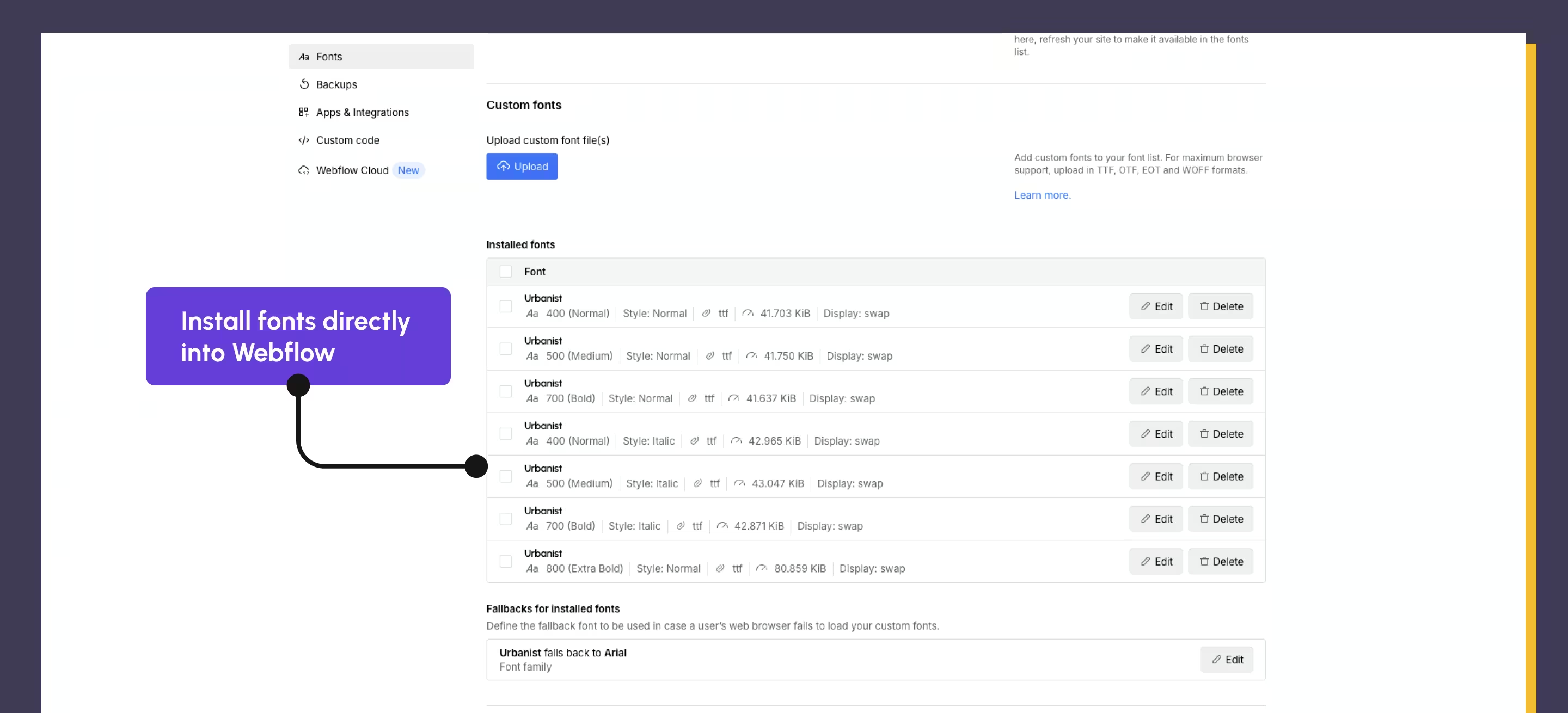
Custom fonts add HTTP requests and can delay text rendering if not handled correctly. The browser will often show invisible text (FOIT — Flash of Invisible Text) while waiting for the font file to download, which hurts both FCP and user perception.
- Limit custom font families — two at most (one for headings, one for body)
- Use only the font weights you actually use — loading all weights of a font family when you only use Regular and Bold wastes bandwidth
- In Webflow: installing Google Fonts through Webflow's font manager is more performant than loading them from an external Google stylesheet, because Webflow serves them via its CDN
- Consider system font stacks for body text on performance-critical pages — they load instantly and work well at small sizes
Webflow-Specific Performance Advantages
Webflow's hosting infrastructure provides several performance advantages that custom-built or WordPress-hosted sites often require significant additional configuration to achieve.
- Global CDN: Webflow serves all assets through Cloudflare's global CDN by default. This means assets are delivered from servers geographically close to each visitor, reducing latency. For Singapore audiences, this means assets are served from regional edge nodes rather than a server in the US or Europe.
- Automatic SSL: HTTPS is enforced on all Webflow sites. Beyond security, HTTPS is a prerequisite for HTTP/2, which enables multiplexing — multiple assets loading in parallel rather than sequentially.
- Clean HTML output: Webflow generates clean, semantic HTML without the plugin-bloat common to WordPress. Fewer plugins means fewer HTTP requests and less JavaScript to parse.
The caveat: Webflow's performance advantages are only realised if the site is built carefully. Unoptimised images, excessive animations, and heavy third-party embeds can undermine the platform's inherent speed. This is why ongoing website maintenance includes performance monitoring — speed does not stay stable indefinitely as content and scripts accumulate.
Website Speed and the Singapore Market
Singapore's digital infrastructure is world-class — internet speeds are among the fastest globally, and 4G/5G penetration is near-universal. But this creates a counterintuitive risk: designers and developers testing their sites on fast connections may not notice performance issues that are clearly visible on variable connections or older devices.
The reality of the Singapore market is that:
- Mobile usage is dominant: over 80% of Singaporeans access the internet primarily via mobile. Google's mobile-first indexing means your mobile Core Web Vitals score is the one that determines your rankings — not desktop.
- Competition is high and patience is low: in competitive categories (web design, legal, financial services, F&B, e-commerce), users are comparing multiple tabs simultaneously. A slow site in this context does not get a second chance.
- Regional audiences matter: many Singapore businesses serve regional markets — Malaysia, Indonesia, the Philippines. CDN performance matters for these audiences, and Webflow's CDN covers Southeast Asia well.
- Google dominates search: with over 95% search market share in Singapore, Google's Core Web Vitals are the only performance benchmarks that matter for organic visibility.
For a broader understanding of how speed connects to your overall SEO strategy, our SEO tips guide covers how performance sits alongside content quality and backlink authority as the three primary ranking determinants.
Monitor Performance Regularly — Not Just at Launch
Website speed is not a state you achieve once and retain permanently. Every new image uploaded, every third-party script added, every new section built can affect performance. Sites that scored 90+ on launch routinely drop to 60–70 within 12 months without active maintenance.
A practical monitoring cadence:
- Run PageSpeed Insights on your homepage, highest-traffic landing page, and primary service page monthly
- Check Google Search Console's Core Web Vitals report for field data — this shows how real users are experiencing your site
- After any major content update or new feature launch, run a performance check before and after
- Review GTM and third-party scripts quarterly — remove anything not actively used. Each marketing tag costs load time.
If you do not have the bandwidth to manage this internally, website maintenance is designed specifically for this — regular performance monitoring, speed audits, and proactive fixes before issues affect rankings or conversions.
For a comprehensive technical audit framework that covers speed alongside other SEO health factors, our AI SEO audit checklist walks through the full process of diagnosing and prioritising website performance issues.
Frequently Asked Questions
How can I test my website speed for free?
Google PageSpeed Insights is the most authoritative free tool — it uses the same data Google uses for ranking decisions and reports on Core Web Vitals for both desktop and mobile. GTmetrix is useful alongside it because it provides a waterfall view showing which specific assets are slow and in what sequence they load. Run both tools, prioritise mobile scores, and focus on the Opportunities section in PageSpeed Insights for the highest-impact improvements.
Does website speed really affect SEO?
Yes — directly and measurably. Google confirmed page speed as a ranking signal in 2010 and has steadily increased its weighting with each Core Web Vitals update. Slow sites are penalised not just in rankings but in click-through rate: Google can display a 'Slow page' label in search results, which reduces CTR before a user even reaches the site. Beyond rankings, speed affects engagement metrics (bounce rate, time on page, pages per session) which are correlated with ranking performance. A site that loads slowly and users abandon quickly sends negative behavioural signals to Google.
What is a good website load time?
For Core Web Vitals, the targets are: LCP (Largest Contentful Paint) under 2.5 seconds; INP (Interaction to Next Paint) under 200ms; CLS (Cumulative Layout Shift) under 0.1. For overall page load time, under three seconds is the widely cited target, with the first two seconds being the most critical — the majority of user abandonment decisions happen in this window. Mobile targets are the same as desktop because Google uses mobile-first indexing, but mobile scores are typically harder to achieve due to network variability and device constraints.
How can I improve my Webflow website speed?
The highest-impact Webflow-specific steps are: enable Minify CSS and Minify JS in Site Settings → Hosting → Advanced Options; compress and convert all images to WebP before uploading; define explicit width and height on all images to prevent CLS; keep lazy loading enabled on below-fold images but disabled on your hero image; limit custom fonts to two families and only the weights you use; audit and remove unused CSS classes regularly; and review GTM for unused third-party scripts. Webflow's CDN handles delivery automatically — the performance work is primarily in how you prepare and structure assets.
Is Webflow faster than WordPress or Wix?
In most comparable configurations, yes. Webflow generates clean semantic HTML without plugin dependency, serves everything through Fastly's global CDN by default, and enforces minification options natively. WordPress performance depends heavily on theme quality, plugin stack, and hosting choice — a well-configured WordPress site on premium hosting with a lightweight theme can match Webflow, but a typical WordPress site with ten plugins and shared hosting will be significantly slower. Wix has improved but its JavaScript payload remains heavier than Webflow's for equivalent page complexity.
How often should I check my website's performance?
Monthly for your primary commercial pages (homepage, service pages, key landing pages), and after any major content update or new feature launch. Google Search Console's Core Web Vitals report provides field data — actual measurements from real users — which is more reliable than lab data from PageSpeed Insights alone. Set a calendar reminder for the first Monday of each month and run a three-minute PageSpeed check. If scores drop significantly between checks, investigate what changed: new images, added scripts, or new content sections are the most common culprits.
Conclusion
Website speed optimisation is not a one-time fix — it is an ongoing commitment to performance, usability, and technical health.
With Webflow, the foundational infrastructure is already strong. The performance work lies in how you build on top of it: optimising images before upload, managing animations deliberately, keeping CSS clean, limiting font weights, and monitoring performance regularly as your site evolves. Get these habits right and your site will rank better, convert more reliably, and give every visitor — whether they are on fibre in Singapore or 4G in Jakarta — the fast, responsive experience they expect.
If you want support maintaining your site's performance alongside content and UX updates, website maintenance is designed for exactly that. Or if you are building something new and want performance built in from the start, see how we work.
{{build-better-experience="/directory"}}
First Published On
September 19, 2023
Categories
Written By

Resources
Related Articles
Deep dive into our latest news and insights.

.webp)